
微信小程序框架wxml(一)wxml数据绑定
今天系统的记录一下wxml的数据绑定功能。
首先给出要用到的wxss样式文件
/* pages/wxml/wxml.wxss */
.wxml-container{
  padding: 0 20rpx ;
  align-items: center;
}

.topic-group{
  background: pink;
  width: 100%;
  text-align: center;
  margin-top: 40rpx;
}

#text1{
  margin-top: 0;
}

text{
  width: 100%;
  text-align: center;
}

.topic-item{
  font-size: 40rpx;
}
1.简单绑定,用双花括号引用变量
  <text class="topic-group" id="text1">简单绑定</text>
  <view class="topic-item">{{message}}</view>
  <view class="topic-item">{{messageNew.time}}</view>
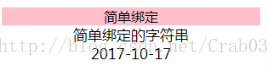
并在js的data中赋值↓,如message中可以直接引用,time在messageNew中赋值,引用时用.间隔,messageNew.time为数据路径。
Page({

  /**
   * 页面的初始数据
   */
  data: {
    message: "简单绑定的字符串",
    messageNew:{
      time:"2017-10-17"
    },
  }
})
效果图↓
2.用工具查看属性,将view的id值赋为item-{{id}}
  <text class="topic-group">组件属性</text>
  <view id="item-{{id}}" class="topic-item">通过工具查看属性</view>
在js对id进行赋值
id: 1,
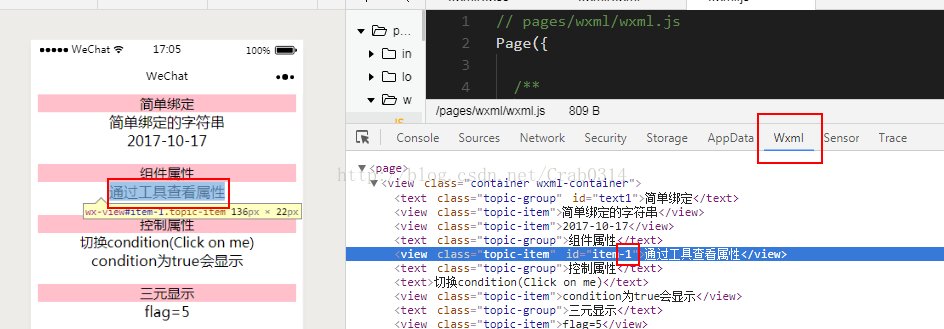
查看属性↓,点击Wxml工具,将鼠标移到左侧view上并点击,对应属性内容标蓝,可以看到,该view的id值为item-1。
3.控制属性
 <text class="topic-group">控制属性</text>
  <text bindtap="switchCondition">切换condition(Click on me)</text>
  <view wx:if="{{condition}}" class="topic-item">condition为true会显示</view>
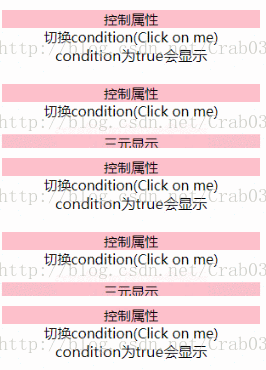
js中我们首先将condition赋值true,并在js中实现方法
switchCondition: function () {
    var condition = this.data.condition;
    this.setData({
      condition: !condition
    })
  }
4.三元运算
<text class="topic-group">三元运算</text>
  <view hidden="{{flag==1?true:false}}" class="topic-item">flag={{flag}}</view>
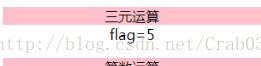
①我们在js中将flag赋值为5,显示如下↓(因为flag不为1,因此hidden为false,即不隐藏)
②在js中将flag赋值为1,显示如下↓(flag==1,hidden值为true,view被隐藏)

5.算数运算
<text class="topic-group">算数运算</text>
  <view class="topic-item">{{a+b}}+{{c}}+d</view>
  <view class="topic-item">{{a+b+c}}+{{d}}</view>
同样在js的data中进行赋值↓
    a: 1,
    b: 2,
    c: 3,
    d: 4,
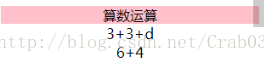
效果图如下,花括号包裹的部分可以进行运算,不同花括号之间的数据无法进行运算
6.逻辑运算
<text class="topic-group">逻辑判断</text>
  <view wx:if="{{length>5}}" class="topic-item">length={{length}}</view>
  <view wx:if="{{arr.length>5}}" class="topic-item">arr.length={{arr.length}}</view>
在js赋值
    length:4.5,
    arr:[1,2,3,4,5,6],
效果图如下 ↓ length=4.5 不满足大于5的条件 ,因此第一个view不可见;arr.length=6满足大于5的条件,因此第二个view可见,展示arr.length=6.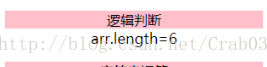
7.字符串运算
  <text class="topic-group">字符串运算</text>
  <view class="topic-item">{{"hello "+name}}</view>
  <view class="topic-item">hello {{name}}</view>
在js中对name进行赋值↓
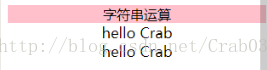
name:"Crab",效果图,可以看到两种表达方式的结果一致
8.数据路径计算
  <text class="topic-group">数据路径运算</text>
  <view class="topic-item">{{buff.age}}+{{cow[0]}}+{{cow[1]}}</view>
在js的data中加入如下赋值数据↓
    buff:{
      age:13
    },
    cow:["Emily","Lisa"],
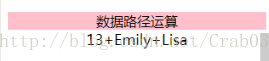
查看结果 (数组中数据用 “数组名[索引]” 方式访问,JSON格式用.分隔路径不同级)
9.数组组合
  <text class="topic-group">数组组合</text>
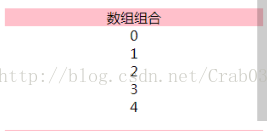
  <view wx:for="{{[zero,1,2,3,4]}}">{{item}}</view>
在js中赋值
zero:0,查看结果,可以看到数组中的zero被js中的值替换。
接下来,我们将wxml数组中的zero用引号标注
  <text class="topic-group">数组组合</text>
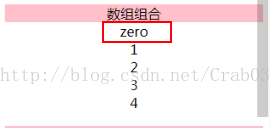
  <view wx:for="{{["zero",1,2,3,4]}}">{{item}}</view>
查看新的结果,可以看到,数组的首个元素直接为 ‘zero’
10.使用对象
  <template name="templateA">
    <text>{{templateA1}}</text>
    <text>{{templateA2}}</text>
  </template>

  <text class="topic-group">使用对象</text>
  <template is="templateA" data="{{templateA1:"Amarni405",templateA2}}"></template>
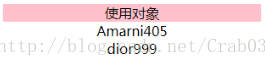
自定义一个template,将其命名(须符合命名规范)。在“templateA”中,包含两个text,其引用值分别为templateA1和templateA2,使用该templateA时需要将两个参数赋值。在该demo中,templateA1在wxml在template中赋值为“Amarni405”,templateA2在js中进行赋值
templateA2:"dior999",查看结果
11.对象展开
  <template name="templateB">
    <text>Ba={{Ba}}</text>
    <text>Bb={{Bb}}</text>
    <text>Bc={{Bc}}</text>
    <text>Bd={{Bd}}</text>
    <text>Be={{Be}}</text>
  </template>

  <text class="topic-group">对象展开</text>
  <template is="templateB" data="{{...obj1,...obj2,Ba:obj1.a,Be:10}}"></template>
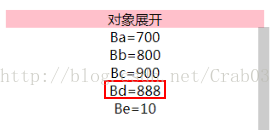
js中数据赋值如下↓,进行数据展开时,变量名需一一对应(obj1中不含变量Ba,因此需对Ba进行Ba:obj1.a操作,当然也可以将其他值赋给Ba)
    obj1:{
      a:700,
      Bb:800,
      Bc:900
    },
    obj2:{
      Bd:1000
    },
    Bd:888,
查看结果↓
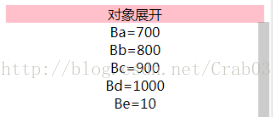

可以看到Bd值发生了变化↓
12.其他注意事项 花括号与引号之间存在空格,结果发生变化
  <view wx:for="{{[1,2,3]}} ">
    {{item}}
  </view>

  <view wx:for="{{[1,2,3] + " "}}">
    {{item}}
  </view>
每一个view中都存在5个元素 “1” “,” “2” “,”和“3”(数组元素之间填充逗号)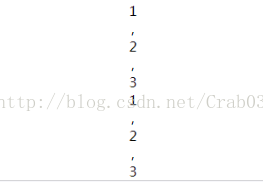
13.附上完整的wxml文件
<!--pages/wxml/wxml.wxml-->
<view class="container wxml-container">
  <text class="topic-group" id="text1">简单绑定</text>
  <view class="topic-item">{{message}}</view>
  <view class="topic-item">{{messageNew.time}}</view>

  <text class="topic-group">组件属性</text>
  <view id="item-{{id}}" class="topic-item">通过工具查看属性</view>

  <text class="topic-group">控制属性</text>
  <text bindtap="switchCondition">切换condition(Click on me)</text>
  <view wx:if="{{condition}}" class="topic-item">condition为true会显示</view>

  <text class="topic-group">三元运算</text>
  <view hidden="{{flag==1?true:false}}" class="topic-item">flag={{flag}}</view>

  <text class="topic-group">算数运算</text>
  <view class="topic-item">{{a+b}}+{{c}}+d</view>
  <view class="topic-item">{{a+b+c}}+{{d}}</view>

  <text class="topic-group">逻辑判断</text>
  <view wx:if="{{length>5}}" class="topic-item">length={{length}}</view>
  <view wx:if="{{arr.length>5}}" class="topic-item">arr.length={{arr.length}}</view>

  <text class="topic-group">字符串运算</text>
  <view class="topic-item">{{"hello "+name}}</view>
  <view class="topic-item">hello {{name}}</view>

  <text class="topic-group">数据路径运算</text>
  <view class="topic-item">{{buff.age}}+{{cow[0]}}+{{cow[1]}}</view>

  <text class="topic-group">数组组合</text>
  <view wx:for="{{["zero",1,2,3,4]}}">{{item}}</view>

  <template name="templateA">
    <text>{{templateA1}}</text>
    <text>{{templateA2}}</text>
  </template>

  <template name="templateB">
    <text>Ba={{Ba}}</text>
    <text>Bb={{Bb}}</text>
    <text>Bc={{Bc}}</text>
    <text>Bd={{Bd}}</text>
    <text>Be={{Be}}</text>
  </template>

  <text class="topic-group">使用对象</text>
  <template is="templateA" data="{{templateA1:"Amarni405",templateA2}}"></template>

  <text class="topic-group">对象展开</text>
  <template is="templateB" data="{{...obj1,...obj2,Ba:obj1.a,Be:10,Bd}}"></template>

  <text class="topic-group">条件判断</text>
  <text wx:if="{{5>3}}">true</text>
  <text wx:else>flase</text>

  <view wx:for="{{[1,2,3]}} ">
    {{item}}
  </view>

  <view wx:for="{{[1,2,3] + " "}}">
    {{item}}
  </view>

</view>
// pages/wxml/wxml.js
Page({

  /**
   * 页面的初始数据
   */
  data: {
    message: "简单绑定的字符串",
    messageNew:{
      time:"2017-10-17"
    },
    id: 1,
    condition: true,
    flag: 5,
    a: 1,
    b: 2,
    c: 3,
    d: 4,
    length:4.5,
    arr:[1,2,3,4,5,6],
    name:"Crab",
    buff:{
      age:13
    },
    cow:["Emily","Lisa"],
    zero:0,
    templateA2:"dior999",
    obj1:{
      a:700,
      Bb:800,
      Bc:900
    },
    obj2:{
      Bd:1000
    },
    Bd:888,
    lipsticks:["YSL13","Dior999","Armani405"],
    lipsticks2:[
      {
        name:"YSL13",
        price:320
      }, {
        name: "Dior999",
        price: 300
      }, {
        name: "Armani405",
        price: 320
      },
    ]
  },
  switchCondition: function () {
    var condition = this.data.condition;
    this.setData({
      condition: !condition
    })
  }
})
今天就记录到这里,夜晚愉快。
声明:该文观点仅代表作者本人,入门客AI创业平台信息发布平台仅提供信息存储空间服务,如有疑问请联系rumenke@qq.com。
- 上一篇:没有了
- 下一篇:没有了