
Python点滴(三)—pandas数据分析与matplotlib画图
本篇博文主要介绍使用python中的matplotlib模块进行简单画图功能,我们这里画出了一个柱形图来对比两位同学之间的不同成绩,和使用pandas进行简单的数据分析工作,主要包括打开csv文件读取特定行列进行加减增加删除操作,计算滑动均值,进行画图显示等等;其中还包括一段关于ipython的基本使用指令,比较naive欢迎各位指正交流!
mlp.rc动态配置
你可以在python脚本或者python交互式环境里动态的改变默认rc配置。所有的rc配置变量称为matplotlib.rcParams 使用字典格式存储,它在matplotlib中是全局可见的。rcParams可以直接修改,如:
import matplotlib as mpl
mpl.rcParams["lines.linewidth"] = 2
mpl.rcParams["lines.color"] = "r"
Matplotlib还提供了一些便利函数来修改rc配置。matplotlib.rc()命令利用关键字参数来一次性修改一个属性的多个设置:
import matplotlib as mpl
mpl.rc("lines", linewidth=2, color="r")
这里matplotlib.rcdefaults()命令可以恢复为matplotlib标准默认配置。
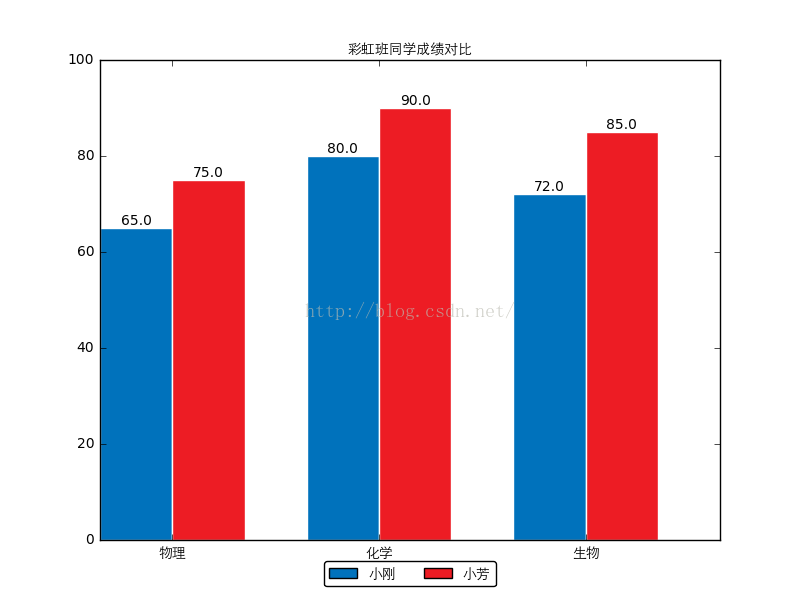
在日常的数据统计分析的过程当中,大量的数据无法直观的观察出来,需要我们使用各种工具从不同角度侧面分析数据之间的变化与差异,而画图无疑是一个比较有效的方法;下面我们将使用python中的画图工具包matplotlib.pyplot来画一个柱形图,通过一个小示例的形式熟悉了解一下mpl的基本使用:
<span style="font-size:14px;">#!/usr/bin/env python
# coding: utf-8
#from matplotlib import backends
import matplotlib.pyplot as plt
import matplotlib as mpl
mpl.use("Agg")
import numpy as np
from PIL import Image
import pylab

custom_font = mpl.font_manager.FontProperties(fname="C:\Anaconda\Lib\site-packages\matplotlib\mpl-data\fonts\ttf\huawenxihei.ttf")
# 必须配置中文字体,否则会显示成方块
# 所有希望图表显示的中文必须为unicode格式,为方便起见我们将字体文件重命名为拼音形式 custom_font表示自定义字体

font_size = 10 # 字体大小
fig_size = (8, 6) # 图表大小

names = (u"小刚", u"小芳") # 姓名元组
subjects = (u"物理", u"化学", u"生物") # 学科元组
scores = ((65, 80, 72), (75, 90, 85)) # 成绩元组


mpl.rcParams["font.size"] = font_size   # 更改默认更新字体大小
mpl.rcParams["figure.figsize"] = fig_size   # 修改默认更新图表大小
bar_width = 0.35   # 设置柱形图宽度

index = np.arange(len(scores[0]))

# 绘制“小明”的成绩 index表示柱形图左边x的坐标
rects1 = plt.bar(index, scores[0], bar_width, color="#0072BC", label=names[0])
# 绘制“小红”的成绩
rects2 = plt.bar(index + bar_width, scores[1], bar_width, color="#ED1C24", label=names[1])

plt.xticks(index + bar_width, subjects, fontproperties=custom_font)        # X轴标题
plt.ylim(ymax=100, ymin=0)        # Y轴范围

plt.title(u"彩虹班同学成绩对比", fontproperties=custom_font)     # 图表标题

plt.legend(loc="upper center", bbox_to_anchor=(0.5, -0.03), fancybox=True, ncol=2, prop=custom_font)
# 图例显示在图表下方 似乎左就是右,右就是左,上就是下,下就是上,center就是center
# bbox_to_anchor左下角的位置? ncol就是numbers of column默认为1


# 添加数据标签 就是矩形上面的成绩数字
def add_labels(rects):
    for rect in rects:
        height = rect.get_height()
        plt.text(rect.get_x() + rect.get_width() / 2, height, height, ha="center", va="bottom")
        # horizontalalignment="center" plt.text(x坐标,y坐标,text,位置)
        # 柱形图边缘用白色填充,为了更加清晰可分辨
        rect.set_edgecolor("white")

add_labels(rects1)
add_labels(rects2)


plt.savefig("scores_par.png")   # 图表输出到本地
#pylab.imshow("scores_par.png")
pylab.show("scores_par.png")    # 并打印显示图片
</span>
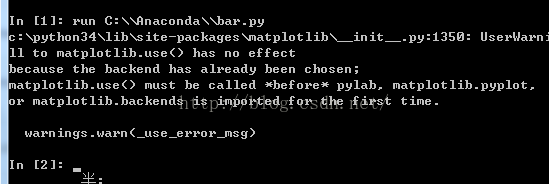
ipython中程序运行结果:
ipython:
run命令,
运行一个.py脚本, 但是好处是, 与运行完了以后这个.py文件里的变量都可以在Ipython里继续访问;
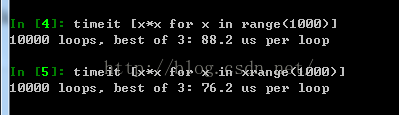
timeit命令,
可以用来做基准测试(benchmarking),
测试一个命令(或者一个函数)的运行时间,
debug命令: 当有exception异常的时候, 在console里输入debug即可打开debugger,在debugger里, 输入u,d(up, down)查看stack, 输入q退出debugger;
$ipython
notebook会打开浏览器,新建一个notebook,一个非常有意思的地方;
alt+Enter:
运行程序, 并自动在后面新建一个cell;
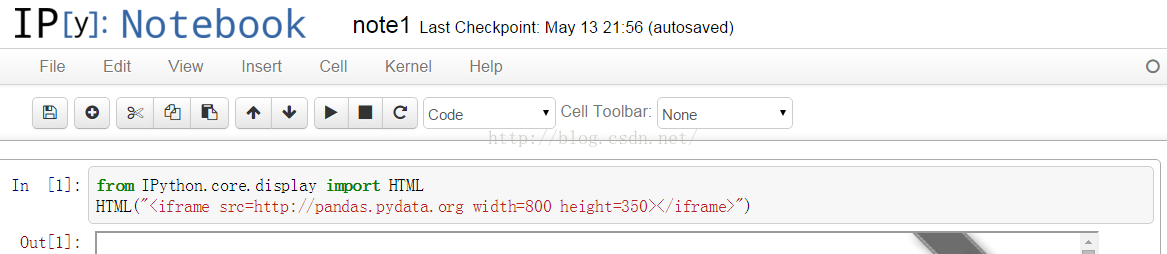
在notebook中是可以实现的
<span style="font-size:14px;">from IPython.core.display import HTML
HTML("<iframe src=http://pandas.pydata.org width=800 height=350></iframe>")</span>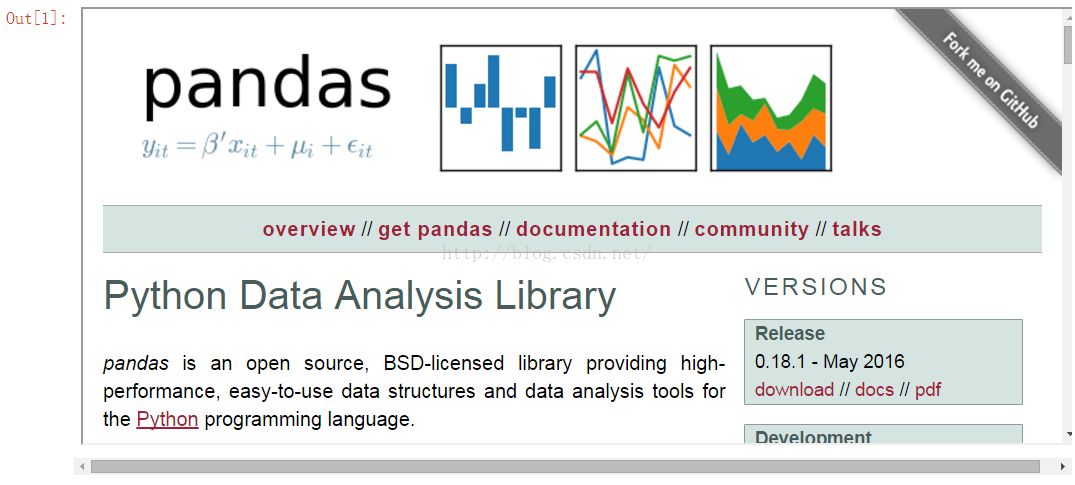
<span style="font-size:14px;">import datetime

import pandas as pd
import pandas.io.data
from pandas import Series, DataFrame
pd.__version__</span>
<span style="font-size:14px;">
Out[2]:
"0.11.0"
In [3]:
import matplotlib.pyplot as plt
import matplotlib as mpl
mpl.rc("figure", figsize=(8, 7))     # rc设置全局画图参数
mpl.__version__</span>
<span style="font-size:14px;"> Out[3]: "1.2.1"</span>
<span style="font-size:14px;">labels = ["a", "b", "c", "d", "e"]
s = Series([1, 2, 3, 4, 5], index=labels)
s
Out[4]:
a    1
b    2
c    3
d    4
e    5
dtype: int64
In [5]:
"b" in s
Out[5]:
True
In [6]:
s["b"]
Out[6]:
2
In [7]:
mapping = s.to_dict()    # 映射为字典
mapping
Out[7]:
{"a": 1, "b": 2, "c": 3, "d": 4, "e": 5}
In [8]:
Series(mapping)          # 映射为序列
Out[8]:
a    1
b    2
c    3
d    4
e    5
dtype: int64</span>
pandas自带练习例子数据,数据为金融数据;
aapl = pd.io.data.get_data_yahoo("AAPL",
                                 start=datetime.datetime(2006, 10, 1),
                                 end=datetime.datetime(2012, 1, 1))
aapl.head()
Out[9]:
| Open | High | Low | Close | Volume | Adj Close | |
|---|---|---|---|---|---|---|
| Date | ||||||
| 2006-10-02 | 75.10 | 75.87 | 74.30 | 74.86 | 25451400 | 73.29 |
| 2006-10-03 | 74.45 | 74.95 | 73.19 | 74.08 | 28239600 | 72.52 |
| 2006-10-04 | 74.10 | 75.46 | 73.16 | 75.38 | 29610100 | 73.80 |
| 2006-10-05 | 74.53 | 76.16 | 74.13 | 74.83 | 24424400 | 73.26 |
| 2006-10-06 | 74.42 | 75.04 | 73.81 | 74.22 | 16677100 | 72.66 |
df = pd.read_csv("C:\Anaconda\Lib\site-packages\matplotlib\mpl-data\sample_data\aapl_ohlc.csv", index_col="Date", parse_dates=True)
df.head()
Out[11]:
| Open | High | Low | Close | Volume | Adj Close | |
|---|---|---|---|---|---|---|
| Date | ||||||
| 2006-10-02 | 75.10 | 75.87 | 74.30 | 74.86 | 25451400 | 73.29 |
| 2006-10-03 | 74.45 | 74.95 | 73.19 | 74.08 | 28239600 | 72.52 |
| 2006-10-04 | 74.10 | 75.46 | 73.16 | 75.38 | 29610100 | 73.80 |
| 2006-10-05 | 74.53 | 76.16 | 74.13 | 74.83 | 24424400 | 73.26 |
| 2006-10-06 | 74.42 | 75.04 | 73.81 | 74.22 | 16677100 | 72.66 |
df.indexOut[12]:
<class "pandas.tseries.index.DatetimeIndex">
[2006-10-02 00:00:00, ..., 2011-12-30 00:00:00]
Length: 1323, Freq: None, Timezone: None
ts = df["Close"][-10:]   #截取"Close"列倒数十行
ts
Out[13]:
Date
2011-12-16    381.02
2011-12-19    382.21
2011-12-20    395.95
2011-12-21    396.45
2011-12-22    398.55
2011-12-23    403.33
2011-12-27    406.53
2011-12-28    402.64
2011-12-29    405.12
2011-12-30    405.00
Name: Close, dtype: float64
df[["Open", "Close"]].head() #只要Open Close列Out[18]:
| Open | Close | |
|---|---|---|
| Date | ||
| 2006-10-02 | 75.10 | 74.86 |
| 2006-10-03 | 74.45 | 74.08 |
| 2006-10-04 | 74.10 | 75.38 |
| 2006-10-05 | 74.53 | 74.83 |
| 2006-10-06 | 74.42 | 74.22 |
New columns can be added on the fly.
In [19]:df["diff"] = df.Open - df.Close #添加新一列 df.head()Out[19]:
| Open | High | Low | Close | Volume | Adj Close | diff | |
|---|---|---|---|---|---|---|---|
| Date | |||||||
| 2006-10-02 | 75.10 | 75.87 | 74.30 | 74.86 | 25451400 | 73.29 | 0.24 |
| 2006-10-03 | 74.45 | 74.95 | 73.19 | 74.08 | 28239600 | 72.52 | 0.37 |
| 2006-10-04 | 74.10 | 75.46 | 73.16 | 75.38 | 29610100 | 73.80 | -1.28 |
| 2006-10-05 | 74.53 | 76.16 | 74.13 | 74.83 | 24424400 | 73.26 | -0.30 |
| 2006-10-06 | 74.42 | 75.04 | 73.81 | 74.22 | 16677100 | 72.66 | 0.20 |
...and deleted on the fly.
del df["diff"]
df.head()
| Open | High | Low | Close | Volume | Adj Close | |
|---|---|---|---|---|---|---|
| Date | ||||||
| 2006-10-02 | 75.10 | 75.87 | 74.30 | 74.86 | 25451400 | 73.29 |
| 2006-10-03 | 74.45 | 74.95 | 73.19 | 74.08 | 28239600 | 72.52 |
| 2006-10-04 | 74.10 | 75.46 | 73.16 | 75.38 | 29610100 | 73.80 |
| 2006-10-05 | 74.53 | 76.16 | 74.13 | 74.83 | 24424400 | 73.26 |
| 2006-10-06 | 74.42 | 75.04 | 73.81 | 74.22 | 16677100 | 72.66 |
close_px = df["Adj Close"]In [22]:
mavg = pd.rolling_mean(close_px, 40)  #计算滑动均值并截取显示倒数十行
mavg[-10:]
Out[22]:
Date
2011-12-16    380.53500
2011-12-19    380.27400
2011-12-20    380.03350
2011-12-21    380.00100
2011-12-22    379.95075
2011-12-23    379.91750
2011-12-27    379.95600
2011-12-28    379.90350
2011-12-29    380.11425
2011-12-30    380.30000
dtype: float64
close_px.plot(label="AAPL")
mavg.plot(label="mavg")
plt.legend()    # 图标
import pylab
pylab.show() # 显示图片Out[25]:
<matplotlib.legend.Legend at 0xa17cd8c>
df = pd.io.data.get_data_yahoo(["AAPL", "GE", "GOOG", "IBM", "KO", "MSFT", "PEP"],
                               start=datetime.datetime(2010, 1, 1),
                               end=datetime.datetime(2013, 1, 1))["Adj Close"]
df.head()
Out[26]:
| AAPL | GE | GOOG | IBM | KO | MSFT | PEP | |
|---|---|---|---|---|---|---|---|
| Date | |||||||
| 2010-01-04 | 209.51 | 13.81 | 626.75 | 124.58 | 25.77 | 28.29 | 55.08 |
| 2010-01-05 | 209.87 | 13.88 | 623.99 | 123.07 | 25.46 | 28.30 | 55.75 |
| 2010-01-06 | 206.53 | 13.81 | 608.26 | 122.27 | 25.45 | 28.12 | 55.19 |
| 2010-01-07 | 206.15 | 14.53 | 594.10 | 121.85 | 25.39 | 27.83 | 54.84 |
| 2010-01-08 | 207.52 | 14.84 | 602.02 | 123.07 | 24.92 | 28.02 | 54.66 |
rets = df.pct_change()In [28]:
plt.scatter(rets.PEP, rets.KO)   # 画散点图
plt.xlabel("Returns PEP")
plt.ylabel("Returns KO")
import pylab
pylab.show()Out[28]:
<matplotlib.text.Text at 0xa1b5d8c>
- 上一篇:没有了
- 下一篇:没有了